How to Protect Browser Privacy: Permissions, Extensions and Tracking Basics is written to answer a specific reader question with practical steps and clear limits. The guidance below avoids invented first-hand testing and points readers to official resources where product details can change.
Start with site permissions
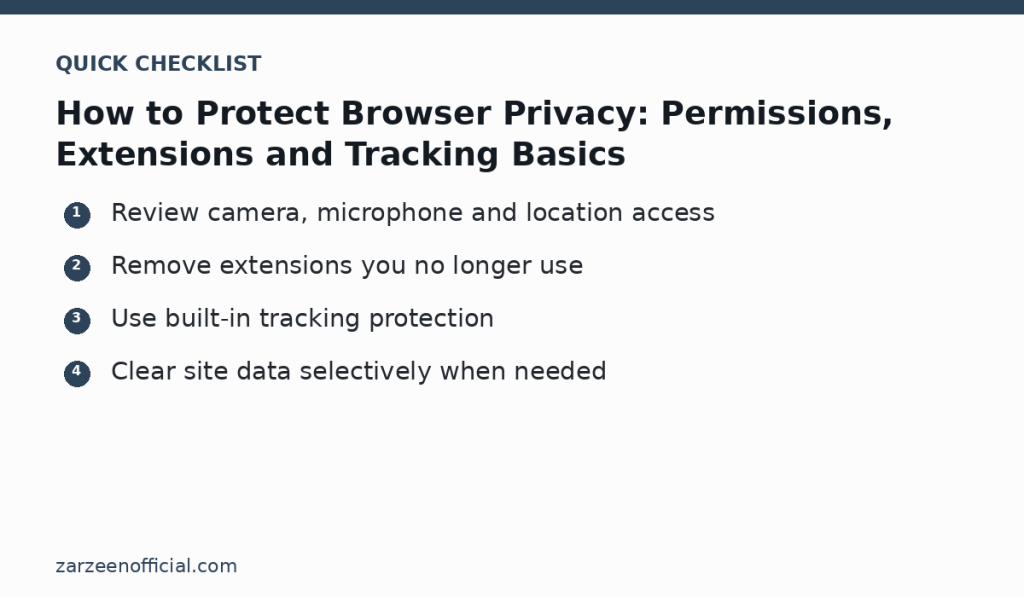
Modern browsers can grant websites access to the camera, microphone, location, notifications, clipboard and other capabilities. Open the browser’s privacy or site-settings area and review which sites have permanent permission. Remove access that is no longer needed. For sensitive permissions, “ask every time” is often a safer default than permanent access.
Audit extensions
Extensions can read or change web pages depending on the permissions you granted. Remove extensions you do not actively use and install new ones only from the browser’s official store or a trusted developer. Before installation, read the permission prompt. An extension that changes page colors should not need broad access to unrelated data unless its function clearly requires it.
Use tracking protection without breaking essential sites
Most major browsers include controls for third-party cookies or tracking. Start with the standard or balanced setting, then increase protection if it fits your browsing. If a legitimate site breaks, create a narrow exception instead of disabling protection everywhere. Remember that privacy settings can change with browser updates, so review them periodically.
Manage saved data deliberately
Clearing all cookies can sign you out of every site, while never clearing anything can leave unnecessary data behind. Use site-specific controls when possible. Remove saved permissions and data for services you no longer use. On a shared computer, avoid saving passwords in an unmanaged browser profile and sign out when finished.
Keep the browser and operating system updated
Security fixes arrive through updates. Download browsers from their official source and allow normal security updates unless your organization manages them centrally. If an update changes a privacy setting or extension behavior, review the release information and re-check important permissions.
Official resources
Key takeaway
Review camera, microphone and location access Remove extensions you no longer use. Use the official links above when a feature, price, policy or security detail may have changed.