How to Back Up Important Files Before Updating Software is written to answer a specific reader question with practical steps and clear limits. The guidance below avoids invented first-hand testing and points readers to official resources where product details can change.
Identify what you cannot replace
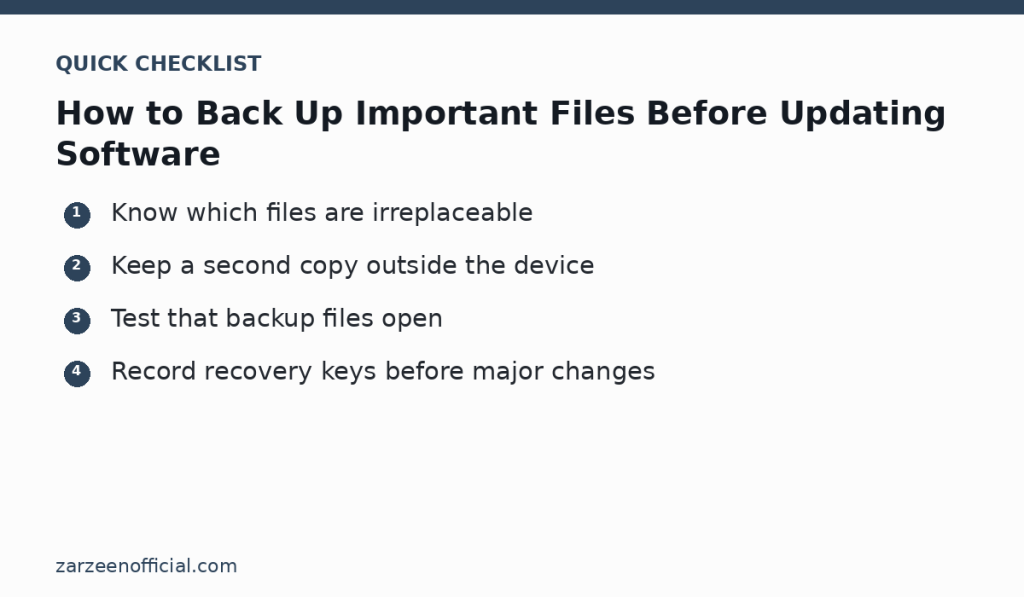
Before a major operating-system or application update, list the files that matter most: work documents, photos, project folders, local email archives, exported bookmarks, accounting files and any application data stored only on the device. Downloads and reinstallable programs are usually less important than original files.
Make a second copy
Copy important files to an external drive or a separate trusted cloud location. If your normal cloud folder automatically syncs deletions, do not treat it as the only backup. For critical work, keep at least one copy that is not dependent on the same device and account.
Verify the backup
A backup is useful only if it can be restored. Open several copied files from the backup location and check their size and modification date. For applications with an export function, test the export before updating. If encryption is used, confirm that you have the password or recovery key.
Prepare account and recovery information
Make sure you can sign in to important accounts after a restart. Record license details or recovery keys where appropriate, and confirm multi-factor authentication methods are available. Do not store the only recovery code on the device that may become inaccessible.
Update in a controlled way
Connect laptops to power, close important applications and avoid interrupting the update. Afterward, check a few important files and applications before deleting the backup. Keep the backup for a reasonable period in case a problem appears later.
Official resources
Key takeaway
Know which files are irreplaceable Keep a second copy outside the device. Use the official links above when a feature, price, policy or security detail may have changed.